The Lego Death Star II (10143)

The Death Star II (10143) is definitely one of my favorite Lego kits. My friend and I put this one together last weekend in about eight hours — not bad considering how long we worked on the Millennium Falcon.

Here are the stats:

  • Model #10143.
  • Released in 2005 (currently discontinued).
  • 3,449 pieces.
  • 50cm wide and 65cm tall.
  • Roughly 15 pounds.
  • Eight hours of build time (two people).

Now here come the visuals:

Continue reading

The Ultimate Collector’s Lego Millennium Falcon 10179

Over the 2010/2011 holiday break, I worked on a lot of Lego models. My kids got some great sets for Christmas, and I finally had time to work on some sets that I’d been accumulating. But the 10179 Millennium Falcon was by far the biggest project we took on.

At 5,195 pieces, this is one of the biggest sets Lego has ever made, and definitely the biggest I’ve ever worked on. It took myself and two friends (and my kids, intermittently) about 14 hours over two days which I consider to be very fast for something this massive.

If you ever take something like this on, here are two important tips to make the process more efficient:

  1. Sort your pieces first. We spent about two hours sorting pieces into 12 different bins and about 12 Ziploc bags before we started building. Being able to find pieces quickly made a huge difference, and I’m sure cut our building time down dramatically.
  2. Use multiple instruction booklets. One of us used the included instruction booklet while I used a PDF version on my iPad, and another friend used a PDF on a laptop. That allowed us to work on three different parts of the ship simultaneously, then bring them all together when they were ready. (Download the Millennium Flacon 10179 instruction book here.)

And here’s how it turned out:

Continue reading

Use Emails as Reminders? Here’s a Good Tip

I can’t break the habit of sending myself emails as reminders. I’ve tried various other approaches (todo lists, notes, etc.), but nothing puts an important task right in front of me until I get done like having it in my email inbox.

Most of the reminder emails I send come from my phone (since if I were at my computer, I could usually do whatever I’m reminding myself to do). Eventually I got tired of typing my relatively long name or email address — or rather, enough of it for it to come up as a suggestion — so I created a new Google contact named "me". The only information "me" has is my personal email address, so rather than typing in my name to send myself an email, I simply type "me".

But that’s not all. If you’ve read my previous post, Five Simple Gmail Tips, you know that if you use Gmail, you can append a plus ("+") to your email address, then any arbitrary string after it, and you will still get the email. So rather than just give the new "me" contact my regular email address, I used "my.email.address+todo@gmail.com". In Gmail, I set up a filter based on incoming mail to "my.email.address+todo@gmail.com", so any "todo" email that comes in automatically get starred, and assigned the "todo" label.

So far, this technique has worked out really well. It makes a low-tech, very simple solution slighter higher-tech, and even more effective.

For more email tips, see my previous post, Five Simple Gmail Tips.

Think Twice Before Building a Business on YouTube

Update: About 45 minutes after TechCrunch picked up this story, the Watch Report YouTube account was restored. Thank you YouTube, and thank you TechCrunch.

Watch Report, one of the oldest and most popular watch blogs, recently had its YouTube account terminated in error, and there seems to be no way to get it back. If you’re thinking of building a business based on YouTube advertising revenue, you might want to think again. As we learned, all of your work can be taken away at any moment, and there’s absolutely nothing you can do about it.

Here’s what happened to us at Watch Report.

Continue reading

Review of the Galaxy Tab: the Good and the Bad

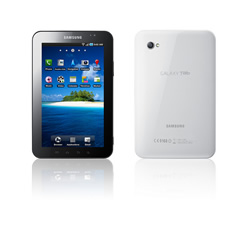
samsung_galaxy_tabNow that I’ve put a lot of hours into using the Galaxy Tab, here’s what I think: Samsung is very much on to something with this form factor and the build quality of the Tab, but they need to work out the bugs and get the price down by at least a couple hundred dollars. If the Galaxy Tab were, say, $300, I would recommend it without hesitation to almost everyone I know. At $600, however, I would still recommend it to gadget lovers, but to the proverbial mom, I would say wait for the next generation which should be more polished, and hopefully significantly cheaper.

But just to be clear: I really love this device, and have found myself completely attached to it. Although it doesn’t have the fit and finish (from a software perspective) of an iPad, it’s definitely much closer to what I’ve been looking for in a tablet: very portable, great battery life, and a data plan that I can mostly live with.

What I like about the Samsung Galaxy Tab

  • The size is perfect, in my opinion. There’s definitely a place for 10″ tablets, but the 7″ screen is the right size for me. It’s small enough that I can easily carry it around (I’ve had the Galaxy Tab with me since the moment I bought it), but big enough that I almost always reach for it rather than my phone now. In fact, if it had real voice capabilities, I could see it actually replacing a phone in some circumstances (with a headset, naturally — and only because the thing I do least on my phone is make voice calls). I’m also looking forward to getting a car dock which will give me the absolute best GPS in the world, and nice big controls which are easy to read and tap on while driving.
  • The keyboard. This is really a function of the device’s size, but it’s important enough that I wanted it to have its own bullet point. If you like thumb typing (as you BlackBerry and old Sidekick users out there invariably do), you’ll love typing on the Galaxy Tab. Although I can touch type on the virtual keyboard on my iPad, I find it far less accurate and far more annoying than thumb typing on some devices. Since I’ve been using the Tab, my email responses have gotten prompter, and my text messages have gotten longer.
  • The hardware. The build quality of the Galaxy Tab seems to be very high. It’s definitely not nicer than my iPad, but I would say that it’s not in any way obviously inferior (which, to be honest, I was kind of expecting). The screen is bright and apparently tough enough to shoot BBs at, and the case feels well-made. I would say the buttons are a tad on the soft side, and the power button should have been placed on the top rather than the side since it’s easy to inadvertently turn on or off while picking up by the edges. And power buttons on the top have become the standard for phones and devices, so it was an odd decision not to follow the trend for seemingly no good reason.
  • Battery life. The battery life this thing gets is amazing, and if you check out the iFixit tear down, you’ll see why. The majority of the bulk and weight of this Galaxy Tab is battery. With moderate use, you can easily go two days without charging it — maybe even three.
  • The data plan. First, let it be known that I basically unequivocally dislike mobile phone carriers. If you read my post entitled The Free Market Paradox, you’ll get a pretty good idea of how I think mobile phone carriers victimize customers and essentially collude in order to provide the worst service they can get away with at the highest prices. In most cases, I prefer the experience of buying a new car to buying a new mobile phone. But for the first time ever, I feel like I’m actually paying something close to a fair price for a service from a mobile phone carrier. I’m paying $20 per month for 1GB of data with no contract which means I can cancel anytime, and I can use the device for tethering. Now, to be clear, I really should be paying $9.99 for 1GB, or $19.99 for unlimited, but considering the fact that I bought the plan without muttering curses under my breath, I guess I feel like I’m finally getting something almost approaching a reasonable value out of my carrier.

What I Don’t Like About the Samsung Galaxy Tab

  • It’s buggy. Although the Tab is certainly usable, it does have several bugs which, if I’d been the Product Manager, I would have not shipped without fixing. For instance, the fact that the screen dims whenever I go to the browser is inexcusable. And things like the occasional (temporary) freezes, and the tendency for taps to sometimes be interpreted as swipe gestures is annoying. And my least favorite bug: I uninstalled the “Let’s Golf!” game that shipped with the device only to find that it’s only partially uninstalled; the icon is still there, and the app still seems to be taking up space, but it doesn’t launch, and the uninstall option is now disabled. Looks like I’ll have to root the device to remove the application entirely which is pretty sad. The bugginess of the Tab is really evident whenever I put it down and pick up my Droid X which feels much faster and more robust — kind of like a finished product.
  • Bloatware. This is one of the things I really love about Apple products, and I may find that I love about Microsoft’s new phones, as well. The bloatware on the last couple of Android devices I’ve gotten has been extremely disappointing. I can deal with a few pre-installed apps shipping on a device. Fine. But to disable uninstalling those apps is positively unforgiveable. This is something that Apple really got right in their dealings with AT&T, and something that has gone terribly wrong with Android. The fact that you can buy an Android phone with the default search configured to be Bing is an indication that there is something seriously wrong with the world. (Note that the search option on the Galaxy Tab is Google, not Bing. Note also that I don’t have anything against Bing — it’s just the irony that I’m pointing out.) I can only hope that market pressure from the iPhone and eventually Windows Mobile Phone 7 will eventually help to reduce this horrendous practice.
  • No notification light. I can’t believe the Galaxy Tab doesn’t have a notification light like every other Android device I’ve used. The little green light that blinks indicating that you have unread messages is hugely valuable, and one of the things I like about Android over the iPhone. Very strange that it was left off the Galaxy Tab, and another example of the lack of standards around Android devices.
  • No voice capabilities. Of course, mobile phone carriers don’t have plans that would really have supported adding a voice-capable device to your plan at a reasonable rate, but it would be great if the Galaxy Tab should share your mobile phone’s number (which it could with Google Voice), and you could occasionally carry just your Tab and leave your phone at home. It certainly isn’t a replacement for a phone, but with voice capabilities, I could see attending a conference with nothing more than a Tab. No laptop, and no phone. Just your Tab, a bluetooth headset, and a big cup of coffee.
  • Non-USB cable. The last thing in the world I need is another type of cable to worry about. Now I need iOS device cables, USB cables for Android devices, and this third kind of cable which seems to be an inversion of the iPhone cable. Why didn’t they just use USB? Perhaps it would have been too slow the charge the battery (which is already pretty slow)? I don’t know, but it was a bad decision.
  • Price. Although I really like this device and plan on taking it everywhere, $600 is still a significant investment. $399 is the right price for the Galaxy Tab at this point, and $299 makes it a complete no-brainer impulse buy. I’m hoping we’ll see the prices come down on 7″ Android tablets as we see more competition, and as components become cheaper.

To Summarize

The overall feeling I get from the Samsung Galaxy Tab is that it’s a really good indication of things to come. It feels very much like the original iPhone to me: a breath of fresh air, but destined to be quickly replaced with more refined models at much more realistic prices. Although I’m very attached to the Galaxy Tab, something tells me that in 6 to 12 months — and certainly no more than 18 — I’ll look back on the Tab as nothing more than a gateway into real 7″ Android tablets. Until then, however, I’m going to enjoy it.

Two Galaxy Tab Tips: Setting Up Google Voice, and Getting Applications to Run Fullscreen

Now that I’ve had a couple of days worth of experience with the Samsung Galaxy Tab, I thought I’d post a couple of tips that have made using the device a much better experience.

Setting up Google Voice on the Samsung Galaxy Tab

One of the first applications I installed on the Galaxy Tab was Google Voice. Although the Tab can’t make GSM or CDMA calls (of course, VoIP calls are theoretically possible), I still wanted to be able to send and receive Google Voice text messages. The Google Voice app installed fine, but I got stuck at the point where it asked for the device’s phone number. Although my device technically does have a phone number (something about Verizon’s data implementation requires devices to have phone numbers), it isn’t possible to actually call the number. That means the number can’t be verified by Google Voice which, in turn, means that it can’t be added to your Google Voice account.

I tried associating my mobile number with my Galaxy Tab, and while it worked perfectly and did allow me to send and receive text messages as expected, I found I could no longer receive text messages on my mobile phone. But the experience gave me an idea: I added my office number to my Google Voice account, and associated it with my Galaxy Tab. Perfect. Since my office phone can send or receive text messages anyway, I wasn’t inadvertently disabling any of its functionality. I can now send and receive text messages from my Galaxy Tab, my Droid X, and from my browser. (And I can still forward calls to my office phone should I choose to.)

To recap, here’s the process of setting up Google Voice to work with the Samsung Galaxy Tab:

  1. Add a Google Voice number to your account that does not need to send or receive text messages. Your home or office phone should work fine. (Note that you will still be able to forward calls to the number you use.)
  2. Install Google Voice on your Galaxy Tab.
  3. During the setup process, select the number you just added to your account as the Galaxy Tab’s number. Google Voice will accept it without requiring any form of verification.
  4. Complete the setup process by skipping the voice mail configuration. That’s not relevant on the Galaxy Tab.

That’s it. You can now send and receive text messages on your nice, new, 7″ Galaxy Tab.

Getting Applications to Run Fullscreen on the Galaxy Tab

Most of the applications I installed on my Galaxy Tab worked fine, but a few (The Weather Channel, New York Times, etc.) didn’t take up the full screen. To be honest, I have no idea why. It seems to me that if your application can run on different Android phones, it should be able to run on a 7″ Android tablet, but apparently not. Anyway, I found a workaround provided by jkkmobile. They made a six-minute video describing how to change your Tab’s configuration such that applications scale properly, but most of the video is spent waiting for the device to reboot (twice!). So, if you want to save yourself some time, I’ll list the steps here:

  1. Download an application called Spare Parts from the Android Market and install it.
  2. Open Spare Parts, and scroll down to “Compatibility Mode”.
  3. Uncheck Compatibility Mode, and then recheck it.
  4. Exit Spare Parts.
  5. Reboot your Galaxy Tab.
  6. Once it boots, open Spare Parts again.
  7. Scroll down to “Compatibility Mode” and uncheck it.
  8. Reboot again.

That’s it. All apps should scale themselves properly now. (Note that this fix is provided by jkkmobile — not me. I’m just listing the steps described in the video so you don’t have to spend six minutes watching a Galaxy Tab reboot.)

Some Miscellaneous Galaxy Tab Tips

  • Turn off the auto brightness adjustment. It doesn’t work very well yet, and it’s not uncommon to place a finger over the light sensor on the front of the device which causes the screen to dim. I’ve found it’s much more convenient to set the screen brightness to a constant value, and just adjust it manually when I need to (like when I’m reading in the Kindle app). You can adjust the screen brightness right from the notification “shade” — a nice addition Samsung made to the Android OS. (Note that it’s also possible to adjust the screen brightness from within the Kindle app by selecting View Options.)
  • Turn off the Swype keyboard. One of the great things about the Galaxy Tab is that the 7″ screen lets you “thumb type” while in portrait mode (which I find to be very efficient). But that pretty much entirely defeats the purpose of Swype which is meant to be used with a single finger, so I found the Samsung keyboard to be much better suited to the device. To turn off Swype, go to Settings > Language and Keyboard > Select Input Method > Samsung keypad. I would also recommend going into the XT9 settings, and turning off everything but spell correction since my experience was that all the other settings did more harm to my typing than good.
  • Install gesture search. Gesture search lets you search your entire device by drawing letters on the screen. I put the Google search widget at the top of the home screen, and since the screen of the Galaxy Tab is so wide, I had room to put the Gesture Search application beside it on the same row. That groups my two most frequently used search options together in one place.

Stay tuned for a full review of the Galaxy Tab coming soon.

Review of the Logitech Revue with Google TV

logitech_google_tvConclusion: It’s not ready.

Having gotten rid of my Verizon FiOS television service some time ago, I’ve been eager to try out the new TV solutions from Apple and Google. I reviewed the new Apple TV about a month ago, and really liked it. Last night, I spent the evening with the Logitech Revue with Google TV, and all I can say is that it’s really not ready yet.

Here’s a summary of my experience so far:

  • The first thing I had to do was go through a 12-step setup process which probably took about 15 minutes. I didn’t have any trouble with it, but I’m guessing the proverbial mom might have called her son or daughter to come over and help.
  • The good thing about the setup process was that it gave me time to read the manual on the keyboard. I actually had to look at the included documentation in order to understand all its functionality. To be fair, the keyboard does make Google TV potentially very powerful, and if you’re going to do things like surf the web, it’s actually a great accessory to have. I got used to it very quickly, and as soon as I accepted it as a powerful universal remote rather than an additional clumsy remote, I actually liked it.
  • Once my Google TV was all set up, the first thing I did was go to Hulu only to find that it doesn’t work with Google TV. Thinking I was more clever than Hulu, I changed my user agent to spoof a Chrome browser on Mac. That got me further into the site, but when I tried to play to a video, I was presented with yet another error message which essentially said: “Hulu is for computers, not for TVs. Nice try, though.” (The Flash Hulu player seems to be using some property from the Flash Capabilities class to determine that the client is a Google TV — huge bummer.) So after 15 minutes of setup and a remote control learning curve, the very first thing I was hoping to do was a complete wash. This isn’t Google’s or Logitech’s fault, of course — this is just Hulu (and the television networks) continuing to protect their traditional television advertising revenue.
  • I then decided to do ultimate test: I wanted to see how easy it was to go from a search for a television show to actually watching that show, so I brought up the search box and typed in “The Office”. I got results from NBC’s site (which claimed I could watch full episodes), and for Amazon Video On Demand. The NBC site refused to work with Google TV just like Hulu, and Amazon wanted to charge me $2.99 for one 20-minute episode. Conclusion: test failed. (I did get to watch some very funny previews, though.)
  • Realizing that I wasn’t going to be watching much TV with my Google TV, I decided to surf the web instead. I decided with a keyboard, mouse, and a 52″ monitor, the Google TV might be a great way to kick back on my couch and read some news and check out some blogs. Unfortunately, the hardware is so inadequate that surfing the web is actually much better on my phone. Pages load slowly, and any page with Flash content not only has rendering issues, but scrolling is painfully laggy.
  • The last hope for my Google TV was BBC news. BBC is probably the only thing I miss after having canceled my Verizon FiOS service, so I figured if I could catch some video clips on BBC’s site, my Google TV would still add some value. The problem was that navigating the site was way too painful (primarily because Flash content made it so slow), and every time I watched a video clip, I had to sit through an advertisement before the actual news began. I don’t mind some ads (I don’t expect content to be free — just reasonable), but to watch 15 short video clips (which is about what it would take to get a good sense of the day’s news), I would have to sit through 15 ads over the course of about 20 to 30 minutes, most of which would be the very same ad. (I watched about four video clips, and got the same ad three out of four times). Again, not Google’s fault, but a clear indication of technologies and business models not being aligned yet.

That’s about when it occurred to me that the Google TV was creating what was probably the worst TV watching experience I’d ever had. So I turned it off and picked up my laptop.

To be fair, I should point out two very important things:

  1. I don’t have a TV service, and part of the magic of Google TV is probably integrating it with a paid TV service. That said, even if I still had FiOS, the only thing Google TV could do for me is put a better interface on top of it. That’s not necessarily a small thing (both Comcast’s and Verizon’s DVRs are atrocious examples user experience), but it’s still probably not compelling enough to add another box to my living room setup. And to be frank, I’m looking for an alternative to traditional TV service — not another piece of hardware to augment it.
  2. It’s not Google’s fault that Hulu and NBC don’t allow access from Google TV. Of course, as a consumer, I don’t really care whose fault it is — I only care about the fact that my new (and not inexpensive) device isn’t very useful.

In summary, the Logitech Revue with Google TV feels like an early prototype to me. The hardware is way too slow and the partnerships and business models aren’t in place to make it even remotely useful yet (for me, anyway). Until one or both of these things change, I recommend the following:

  • The Apple TV. It actually has less functionality, but it’s cheaper, smaller, faster, and as of right now, I would say it’s generally more useful.
  • A Mac Mini and a bluetooth keyboard (or the equivalent in the Windows world). I may end up going this route yet.
  • A laptop or even a phone. You probably don’t want to cuddle up with your friends on your couch and watch something on a small screen, but with a significant other or by yourself, it’s fine.
  • Do something else with your time other than watch TV. Permit me to recommend some good science fiction.

Update: Richard’s comment has inspired me to make a quick update. First, just because Google TV isn’t working out for me, it is working well for others. If you’re thinking of getting one, analyze your particular TV watching needs and habits, and you might find that it works great for you. Second, I actually have very high hopes for Google TV in the future. I believe in what Google is trying to do — I just don’t think the hardware, software, and the partnerships are there yet. As the various pieces fall into place, I will continue to experiment with Google TV, and I will work it into my TV-watching routine as its features and functionality permit.

Five Simple Gmail Tips

gmail_alertBelow are five simple tips that will help you make the most of your Gmail account:

1. Pluses Give You Infinite Gmail Addresses

You can append a plus (“+”) along with any arbitrary string to your email address, and Gmail will simply ignore it. For example, if your email address is john.smith@gmail.com, you can send email to john.smith+spam@gmail.com, and it will be delivered as usual. The only difference is that the “to” address will retain the additional string, allowing you to filter on any token you want. I’ve found this is useful for two primary reasons:

  1. If you need to create a second account on a site that requires an email address, you can enter a unique email address without having to actually create another email account.
  2. You can filter on the additional string which allows you to keep your inbox better organized.

2. Dots are Ignored

Gmail actually ignores all dots (“.”) in your email address. For instance, if your email address is john.smith@gmail.com, you can log in or send email to john.smith@gmail.com, johnsmith@gmail.com, or even j.o.h.n.s.m.i.t.h@gmail.com. Again, this technique can allow you to link a few different email addresses to a single account, or to simply change your email address without actually having to change it.

3. Enable “Undo Send”

Have you ever sent an email, then skimmed it again only to find a typo or realize you forgot a key piece of information? If so, go to Settings, then check “Enable Undo Send.” You can specify a period of 5, 10, 20, or 30 seconds during which you can undo sending an email should you change your mind. Truly a brilliant feature.

4. Use the Word “Attachment”

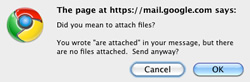
Get in the habit of using the word “attachment” in emails where you intend to send an attachment. If your email contains the word “attachment” but you haven’t actually attached anything, Gmail will alert you and give you a chance to attach a file before sending the email. We’ve all sent and received plenty of emails referring to nonexistent attachments, haven’t we?

5. Filter on “Unsubscribe”

(This one isn’t specific to Gmail, but I thought I’d throw it in anyway.)

The other day, I posted to Twitter that I wanted a Gmail plug-in which searches for links containing the word “unsubscribe” in all my email and automatically clicks on them. Of course, in practice, this could actually do more harm than good. But a useful alternative is to create an “unsubscribe” filter in order to keep unwanted mail out of your inbox. You can check the label occasionally, read the one or two emails that you actually wanted to get, and decide for yourself which ones from which to manually unsubscribe.


Gmail is frequently updated with all kinds of very cool new features, so check your settings regularly to make sure you’re not missing out on something that can make your life easier, or make you more productive.

Update: If you use email as a way to send yourself reminders, here’s another great email tip for you.

Review of the New Apple TV

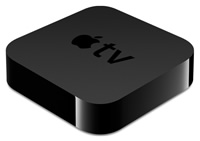
apple_tvI recently got rid of my Verizon FiOS television service (a topic for another post), so when Apple announced the new Apple TV, I ordered one straightaway. At $99, I felt like I had nothing to lose.

I’ve only been using it for a few days, but so far, I’m very happy with it. We’ve used it almost exclusively for Netflix streaming, and to confirm what Steve Jobs said during Apple’s press event, the Apple TV is probably the best Netflix steaming client. As far an I’m concerned, if I only use it for Netflix and for browsing my Flickr stream, it was well worth the $99.

We haven’t “rented” anything yet, and I’m not sure I’ll get into the habit of paying 99¢ for a single viewing of a television show, but I’m not ready to discount the business model yet. Although it still doesn’t feel quite right, I think it might actually make sense. I only watch a handful of television shows, so even if I pay 99¢ for every one of them, I’ll still be way ahead of where I was with FiOS. And most importantly, I’d only be paying for the content I watch rather than the thousands of hours of programming that I don’t watch which, in my opinion, is the biggest problem with the traditional television subscription model.

I will probably pay a movie now and then, however as Netflix streaming becomes more comprehensive (which I assume it will), there will less of a need to pay per film. That said, I do think $3.99 is a reasonable price for low-end HD content, so I’m not opposed to the occasional movie rental.

I don’t know how successful the Apple TV will be, but I do know that I want to support new business models around media. I’m perfectly willing to buy content, and in fact, I think it’s important to back business models you believe in by buying into them, but the models simply have to make sense, and they have to represent good values. Apple TV certainly isn’t 100% there yet, but in my opinion, it’s definitely a step in the right direction.

Things I really like about the Apple TV:

  • Very compact. As usual, Apple really knew what it was doing when it designed this thing. It sits next to my PS3, and is next to invisible. Adding an Apple TV to your collection of consoles and set-top boxes will not require you to rearrange your entire component cabinet. It doesn’t even have a power brick, so it won’t add much to the jungle of cords and cables behind your screen.
  • Great remote. Aside from the battery (see below), I really like the Apple TV remote. Apple knows that the remote is the part of the device that you interface with, so it feels very high-quality and works well.
  • Great UI. Traditional television service providers have always had something against simple and intuitive user interfaces. Once again, Apple to the rescue.
  • Very responsive. My old Verizon FiOS set-top box was buggy, slow, and unstable. Although the Apple TV’s software isn’t flawless (see below), it’s far more robust and responsive than the FiOS box I just sent back to Verizon. It’s also far faster and more robust than the OS and applications built into my Sony Bravia. (Sometimes I wonder why Sony even bothered.)
  • Built-in WiFi. To get my TV online (it has built-in services like Netflix streaming, Amazon on-demand, etc.), I had to set up a wireless bridge which cost extra money, time (in configuration), and precious space. The Apple TV is basically self-sufficient, as devices today should be.
  • No Netflix activation. For some reason, when I set up Netflix streaming on other clients (like my PS3 or my Sony Bravia), I had to go through a horrible registration/activation process which required having a computer nearby, creating an account with Sony, copying codes and URLs back and forth, etc. Every time I set up a new device, I always wonder why I can’t just enter my Netflix credentials and be done with it. That’s exactly how it works on the Apple TV. I’m pretty certain Apple wouldn’t have shipped a device with the same experience you have to go through activating something like a PlayStation.
  • It’s cheap. At $99, there’s almost no reason not to try it. If you’re a Netflix user, you have absolutely nothing to lose.

Some issues to watch out for:

  • It doesn’t come with an HDMI cable. I know Apple likes small packaging, and I know they were trying to keep the price down, but I was disappointed that I had to poach an HDMI cable off another device. Replacing it will add at least another $20 to the price of the Apple TV — a cost which I think it’s fair to call “hidden.”
  • The remote is great (nice and simple, and very high-quality), but it uses a CR2032 button cell battery. I just recently got every toy, remote, sensor, and peripheral in the house using rechargeable batteries, and now I have to worry about keeping a CR2032 handy (since you can’t use the Apple TV without it, you don’t want to wait until the battery actually dies to buy a replacement). I’d like to see a rechargeable option, like PS3 controllers.
  • The Apple TV remote also controls the MacBook I keep near my TV and use primarily as a stereo. This isn’t horrible since I mostly use the Remote application to control iTunes, but I did have to stop the Apple TV setup process to disable the remote on my MacBook. If this happens to you, open System Preferences, then go into Security, and check the “Disable remote control infrared receiver” box.
  • I’ve gotten a couple of errors claiming that my HDMI cable doesn’t support HDCP (a digital copy protection protocol) which made the Apple TV inoperable. After rebooting, it worked fine. I imagine this is a bug that will be fixed in a future software upgrade, and really nothing to worry about.