Over the weekend, I put together a prototype e-book reader to demonstrate two features that I think would make the digital book reading experience much better. If you’ve made the leap to digital books, I’d love to get your thoughts on the video above. And if you like the ideas, please help spread the word.
My Current Keyboard Configuration
 The picture above is one of my home workstations where I think I’ve finally gotten the right keyboard/pointer configuration. Here’s what you’re looking at:
- The black keyboard on the bottom is a Filco Majestouch mechanical keyboard with MX Cherry Brown switches (review with video here). This is what I use for most of my typing. The Alt and Windows keys have been swapped and Alt and Command remapped in software to make it more Mac friendly.
- The keyboard above it is an Apple bluetooth keyboard. I use it for typing when I’m in virtual meetings in order to keep the noise down (it’s very quiet while the mechanical keyboard is way too loud for meetings), and for its media keys (volume up, volume down, and mute). (If you want media keys on your non-Apple keyboard, see this post by Grant Skinner.)
- The mouse is an Apple Magic Mouse. Mice are very personal objects which people feel strongly about, so I’m not going to claim that it’s the best. In fact, I have a few Logitech mice which are equally good if not better. But I enjoy the accuracy and the gestures of the Magic Mouse enough that I’ve stuck with it. (In my opinion, this is the first mouse Apple has ever made that’s usable.)
- The trackpad beside the top keyboard is the Apple Magic Trackpad. I use it for gestures and sometimes for scrolling. I also sometimes connect the bluetooth keyboard and trackpad or mouse to my phone.
- The phone is a Galaxy Nexus. I usually have my iPhone 4S beside it, but I used it to take the photo. I rely on them for notifications. Rather than having alerts pop up on my monitor all the time and distract me, I use my phones for email, calendar, and text notifications. (I have two phones because I do mobile development — and because I love them both.)
- I have an Energizer family sized battery charger off to the side to keep the keyboard and pointing devices powered. I find I’m swapping out batteries about every two weeks.
I have two other workstations: one for Windows, and one at the office. They’re both different just to mix things up a bit, so maybe I’ll get pictures of them at some point, as well.
Using a Mobile Device as a Desktop Computer
Part 1
Part 2
Part 2 Table of Contents:
- Introduction
- The Cables
- Navigation
- Gaming
- The Desktop Web
- Copy and Paste
- Instant Messaging
- Video
- Banana Noose
Some friends of mine and I are experimenting with what it’s like to use a mobile device (in this case, a Galaxy Nexus) as a desktop computer. With the addition of a bluetooth keyboard, multi-touch trackpad, and a monitor, I found that the experience is surprisingly good.
I don’t demo all that many applications in the video for fear of inadvertently showing sensitive data, but I think I show enough that you can get an idea for how close we already are to this type of computing model. In fact, I think if you were to set up a workspace like this for someone who didn’t have “professional” needs (such as writing code or video editing), and/or someone who didn’t have a lot of preconceptions about how a computer should work, they would be perfectly happy with the experience. I was able to do all of the following with relative ease:
- Browse the internet.
- Read news.
- Manage my calendar, tasks, contacts, etc.
- Read and write email almost as easily as I can on my desktop.
- Listen to music and podcasts.
- Chat on IM.
- Edit documents.
- Do some light photo editing (in the default gallery application).
- Participate in social networks (Google+, Twitter, and Facebook).
- Watch videos on YouTube and Netflix.
In other words, I was able to do most of what many people do with desktop computers on a daily basis. Of course, there were a few key things I wasn’t able to do such as:
- Write code. I’m sure it’s possible, but definitely not practical, and probably not something I would enjoy.
- Advanced editing of things like photos and video.
- Advanced file management. With this kind of computing model, you definitely want to keep as much data in the cloud as possible since the file system is generally de-emphasized on mobile devices.
Keep in mind that I’m using a stock Android device with whatever capabilities are already in the OS. If you’re willing to go as far as installing Linux on your phone, you can do far more than this. Additionally, operating systems will likely have much better support for this kind of model in the future — in particular, Windows 8 with Metro.
I’m really curious about whether this kind of interaction represents the future of computing. Are we moving toward a model where we use multiple computers and mobile devices with all our data in the cloud, or in five to ten years, are we all just going to use our phones for most of our computing needs? I’m guessing it’s going to be somewhere in the middle (as these things tend to be), but I’d love to hear your thoughts.
Update: I’ve been getting a lot of questions about the cables I used to make this work. Here’s all you need to know:
- For the display, I used a Samsung MHL to HDMI adapter (along with an HDMI cable, obviously). If you want to do audio through your monitor, make sure your HDMI cable supports audio.
- For a USB keyboard and mouse, you’ll need a micro USB host mode OTG cable, and a powered USB hub. (I used a bluetooth keyboard and mouse, so this isn’t in the video.)
- For audio (if you don’t have speakers in your monitor), I just used a standard 3.5mm audio cable from the phone to my computer speakers.
Thanks to Matt Pandina for helping to get this working.
My Office Gets Even Cooler with the Lego Imperial Shuttle 10212
I found the massive Lego Imperial Shuttle on sale several months ago, and finally had the time to put it together this afternoon. At 2,503 pieces, it’s a sizable model with very good detail. It can be displayed in one of two ways: on its stand with its wings down, or on its landing gear with its wings folded up. In my opinion, it makes an excellent companion to the Death Star II and the Millennium Falcon.
Unlike the Millennium Falcon (which took the better part of two days to assemble — a total of about 14 hours), my friends and I were able to build the Imperial Shuttle in only about four hours. The piece count is high, but nothing about the assembly is particularly challenging.
Below is a record of our progress throughout the afternoon.


Turn Your Old Phone Into a Complete Sound System
I haven’t had a real sound system in years. As soon as we gave up CDs, there didn’t seem to be much of a point anymore. Everyone in my house has their own devices with their own music, and if we ever want to listen to the same thing (rarely), someone just plugs their phone into the set of common speakers in the living room.
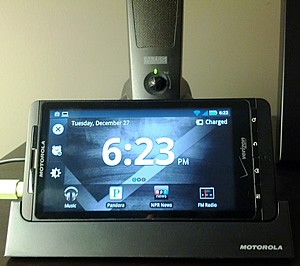
But even in an environment where everyone has constant access to their own personal content, it’s nice to occasionally share an experience. I’ve missed putting music on in the background while we eat, or sharing something new with those around me, so when I recently got a new Android phone (Galaxy Nexus), I decided to turn my next-to-worthless Droid X into a dedicated sound system.
Using a phone as a stereo is obviously not a new concept, but using one as a dedicated sound system is only now becoming practical for many people. Decent smartphones have been out long enough now that chances are you either have an extra one that isn’t worth anything anymore, or you probably will within the next year or so. I have a lot of phones and devices, but I think my Droid X is the first spare Android device I own that isn’t really worth selling, nobody else in my family wants, and that I haven’t come to completely hate (there are a lot of bad Android devices out there which I wouldn’t even want to use to stream music).
Fortunately, I’m not an audiophile, so I’m pretty happy with an underpowered and inexpensive setup. My “stereo” consists of the following:
- An old deactivated Droid X.
- The Droid X media dock.
- A pair of old (but decent) computer speakers with a subwoofer.
- A good wi-fi connection.
- A few apps:
- Pandora.
- Google Music (giving us all access to my entire music collection).
- Google Listen (for podcasts).
- The NPR application (mostly for news).
- An FM radio application (which I’ll probably never use, but that I feel like I should have installed anyway).
If it turns out we use the new setup frequently enough, I’ll probably get some better speakers (any suggestions?), but so far, an old phone, a good wi-fi connection, and a pair of previously disused Altec Lansing speakers are working out surprisingly well.
Scientists Propose Detecting Extraterrestrials Through Light Pollution (as Described in “Containment”)
 Astronomers Avi Loeb and Edwin Turner recently published a paper proposing a technique for detecting extraterrestrials: use telescopes to look for light pollution from alien cities. From the paper’s abstract:
This method opens a new window in the search for extraterrestrial civilizations. The search can be extended beyond the Solar System with next generation telescopes on the ground and in space, which would be capable of detecting phase modulation due to very strong artificial illumination on the night-side of planets as they orbit their parent stars.
I was thinking the same thing when I wrote Containment:
The telescope assembled on the far side of the Moon succeeded in capturing some stunning images, including a few faint pixels of possible light pollution originating from a small rocky planet in the habitable zone of a nearby solar system…
The SETI Institute (Search for Extraterrestrial Intelligence) is already using arrays of Earth-based radio telescopes to search for evidence of alien technology (as dramatized in Carl Sagan’s excellent novel, Contact). Since we’re already detecting exoplanets, it seems reasonable that within the foreseeable future, the technology could exist to measure light pollution on extrasolar planets, providing the first hard evidence of extraterrestrial intelligence. Perhaps alien civilizations have already detected us.
It’s fascinating to watch technologies dreamed up for the sake of science fiction gradually become reality. For instance, the idea of using the LHC for time travel, and artificial photosynthesis.
Introducing “Farmer One”
Update: Farmer One was purchased by StoryFront, and is now exclusively available on Kindle.
My newest book/novella, Farmer One, is now available in all formats (Kindle, Nook, iBooks, EPUB, and HTML). If you’ve read my other work, you’ll find that this one is a little different. It’s still science fiction, but I took it in a slightly new direction. Here’s the synopsis:
In an economically depressed and politically dysfunctional United States, the long-defunct National Aeronautics and Space Administration is reestablished in a desperate attempt to channel the patriotism and optimism of the previous century’s Soviet Space Race. But this time, the nation to beat is China, and the goal is Mars.
Far behind steady advances in Chinese aerospace engineering and even lunar colonization, a team of American scientists, engineers, and astronauts struggles to integrate decades-old technologies, untested prototypes, and some very out-of-the-box thinking to give their nation a shot at one of the most important achievements in human history. Nothing goes as planned while pursuing what appears to be the impossible, but the ultimate surprise lies in the mission’s conclusion.
This quirky and intelligent novella by Christian Cantrell is both humorous and unpredictable as it explores an unfamiliar, but not entirely unimaginable, post-superpower United States.

I owe special thanks to David Coletta and Ben Rossi for their excellent editorial assistance.
Before You Criticize the Cloud for Downtime
 Whenever cloud services like EC2 or Google Docs experience downtime, there are always plenty of comments about the dangers of relying on the cloud. While it’s true that depending on third parties (both your ISP and the provider of the cloud service itself) for basic computing tasks like document editing can be risky, it’s also important to look at and understand the entire equation before evaluating cloud services. Here are some things to consider:
- First and foremost, when you work 100% locally, you have to worry about the integrity of your own storage solution. I’ve had drives fail and/or files become corrupt several times over my career, and I lost much more time than I probably would have during a Google Docs or Amazon Web Service outage.
- When you run everything locally, you need to spend time and money on a backup solution. Although there are a lot of great ways to back up data seamlessly and unobtrusively, there is still overhead involved in the form of configuration, maintenance, and even computer performance. Additionally, local backup solutions like Apple’s Time Machine and Time Capsule are insufficient; if you really want to be secure, off-site backups are imperative. (Take it from someone whose office recently sustained water damage after we got 12″ of rain in four days.)
- If you work in the technology industry, you probably use more than one computer and/or go through computers faster than a typical consumer. Keeping data synchronized across computers, maintaining workstations, and configuring new machines all requires overhead which can be dramatically reduced by using more cloud-based services.
- Although using cloud-based services puts you at the mercy of both the service itself and your ISP, I think you can make a pretty good argument that your ISP usually isn’t all that much of a risk. Even if I’m working 100% locally (writing code, editing video or image files, etc.), I am much less productive without an internet connection. In fact, I’m so dependent on various sites and web-based services that when my connection goes down (which is very rare), I’m more likely to walk away from my computer entirely than to continue working with local files.
All this is not to say that relying on the cloud doesn’t have risks associated with it, or that cloud-based services are always superior to working locally. In fact, although I’m hugely invested in, and dependent on, cloud-based services, I’m not convinced the day will ever come when I do all my work in the cloud. Additionally, aside from downtime, there are other things to consider when choosing to store data in the cloud — chief among them being security. However, before one criticizes cloud services for downtime, it’s important to understand that periods of time during which you cannot be productive come in many different forms, most of which are actually alleviated by using cloud-based services.
Free Copies of Containment: Audio and Paperback
 Update: I’m all out of copies, but I should have more in a few weeks. Thanks for your support!
Containment has sold over 70,000 copies, and recently passed the 300 review mark on Amazon. To celebrate, I’m giving away free copies. I have five audio books (7 CD box set), and five paperbacks. If you want one, here’s what to do:
- Leave a comment here to reserve your copy. Indicate if you want the audio version or the paperback. If you want the paperback, let me know if you want it signed or not.
- Send me your address and which version you requested through my Google profile. (Since I’m covering shipping, I need to limit this offer to the US, unfortunately.)
- Once you’ve read or listened to Containment, tell the world what you think. Post on Twitter, Facebook, Google+, reddit, your blog, etc. (Of course, there’s no requirement that you give Containment a positive review — just tell the world what you honestly think.)
If you don’t get one, I’ll do this offer again when I receive the next shipment, and once I hit 100,000 sales, I’ll do an even bigger giveaway. As always, your support is greatly appreciated.
How to Fix Games That Crash on Start-up in Steam
 I played Bioshock on Xbox shortly after it came out several years ago, and although I was blown away by the opening sequence, I had trouble getting into the rest of the game. I probably put about five or six hours into it before getting distracted by something else (Mirror’s Edge, probably), and soon forgot all about it. I hate leaving things like movies, books, and video games unfinished, however, so while I was between games recently, I decided to buy Bioshock through Steam and give it another go (ever since I built a new gaming PC, my Xbox has been relegated to nothing more than Netflix duty). With an open mind, and determined to assume a totally fresh perspective, I got the game downloaded, started it up, and watched it promptly crash.
Unfortunately for Bioshock, rather than troubleshoot the problem, I played Mass Effect 2, instead. But a few days later, just for fun, I decided to try again. I’ve had good luck playing older games in the past by changing the compatibility mode of the application to an older version of Windows, so I decided to start there. The problem, however, is that it’s a little bit harder to find games’ executables when you install them through Steam, but if you know where to look, you’ll see that they are installed just like any other binary on your machine. I found Bioshock under:
E:\Steam\steamapps\common\bioshock\Builds\Release
(Note that the first part of the path will obviously be different on your machine since you probably have Steam installed somewhere else.)
To change the compatibility mode of a Steam game (or any executable, for that matter), simply:
- Right-click on the game binary (application file).
- Go to Properties > Compatibility.
- Check the box that says “Run this program in compatibility mode for…”
- Select whichever compatibility mode works for the application you’re trying to launch.
In the case of Bioshock, I found that “Windows Vista (Service Pack 2)” worked, though I’ve used other modes for other games (depending on the age). Just click “Ok” and your game should launch properly through Stream the next time you start it up.
Update: If you’re having trouble with the sound, especially after Bioshock’s intro, see this thread on the Steam Users’ Forums.
 Living Digitally